
More: How to set up an Existing DocuSign document
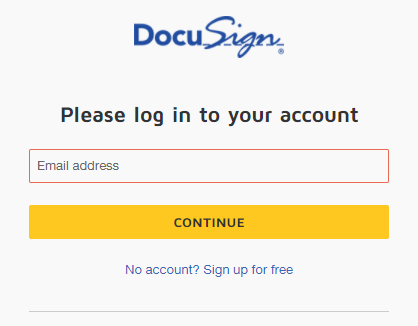
Step 1 - Log into DocuSign using your credentials
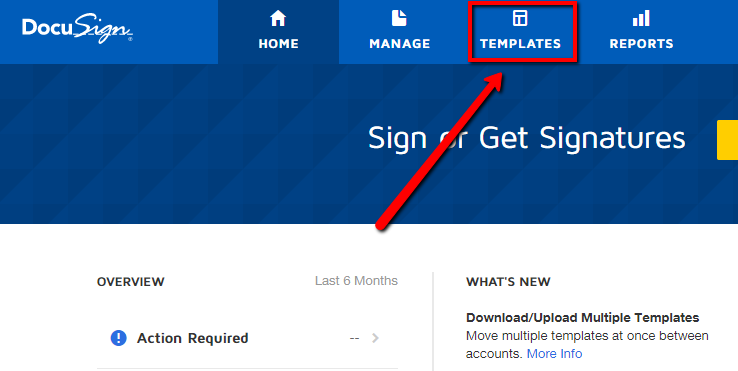
Step 2 - Click the Templates button at the top
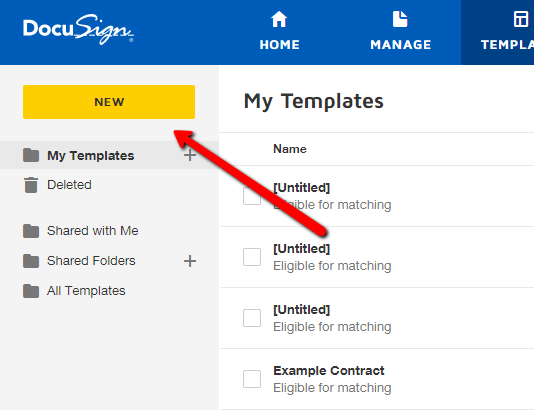
Step 3 - Click the New button at the top left
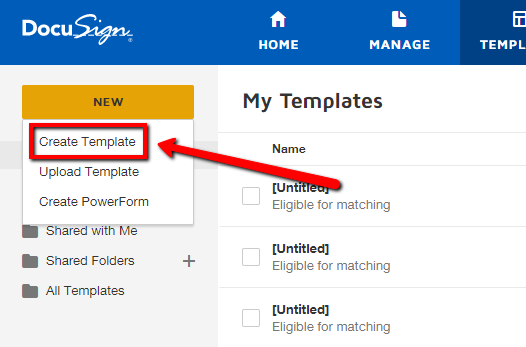
Step 4 - Click Create Template
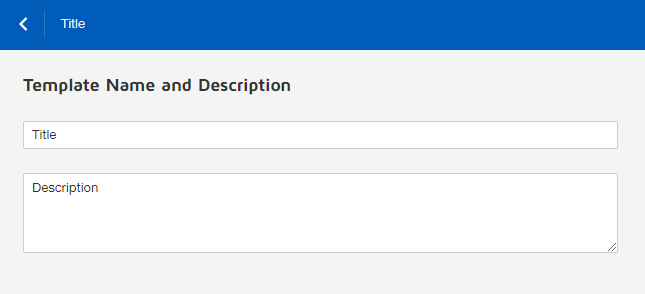
Step 5 - Add a Title and Description to your document
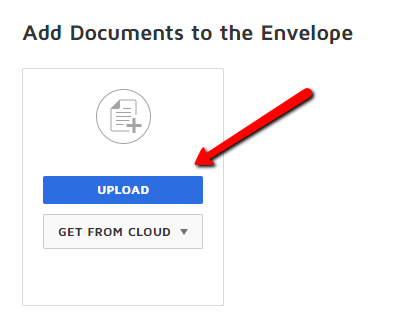
Step 6 - Click the Upload button under Add Documents to Envelope
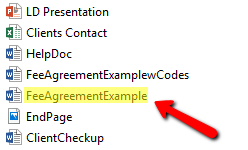
Step 7 - Select the document you wish to import into DocuSign
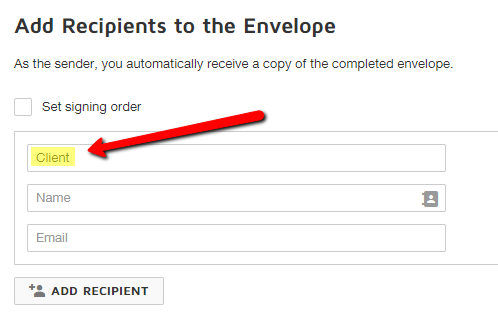
Step 8 - Add recipients under the Add Recipients to the Envelope section
- Client role is required. Type "Client" in the Role input box. Leave name and email blank
- If the related contact needs to also sign, you may click Add Recipient below and type "Additional Signer" in the Role input. You also want to check the box next to "Set signing order" and make sure the Client signs first
Step 9 - Click Next at the top right

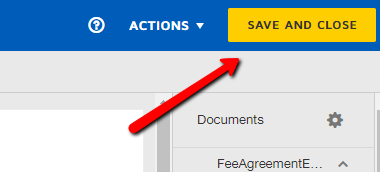
Step 10 - Click Save and Close at the top right
Comments
0 comments
Please sign in to leave a comment.